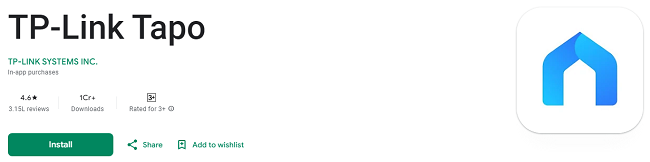
How to Download & Use TP-Link Tapo App on Your Android TV?
Smart home technology is evolving at a rapid pace, allowing users to control everything from lights and security cameras to home appliances with ease. TP-Link’s Tapo series of smart devices have become extremely popular for their reliability, simplicity, and affordability. While the Tapo app is primarily designed for smartphones, it’s possible to use it on Android TV as well, allowing you to manage your devices with a much larger screen and more comfortable interface.
In this guide, we will walk you through the steps to download and use the TP-Link Tapo app on Android TV, so you can easily control and monitor your Tapo devices from your TV screen.
What is TP-Link Tapo App?
The Tapo app is a free, mobile application developed by TP-Link for managing their Tapo smart devices. With the app, you can control and automate a variety of devices such as smart cameras, plugs, lights, and more. It integrates seamlessly with popular voice assistants like Google Assistant and Amazon Alexa for hands-free control. The app also provides features like scheduling, motion detection alerts, and remote control from anywhere via your smartphone.
However, many users prefer managing their smart home devices from a larger screen for easier navigation and control. While TP-Link doesn’t provide a dedicated Tapo app for Android TV, there are ways to install and run the mobile version of the Tapo app on your TV through the Google Play Store or third-party apps.
Why Use TP-Link Tapo App on Android TV?
Using the Tapo app on Android TV can provide several advantages, including:
Larger Display: With Android TV, you can enjoy a much larger display, making it easier to monitor live feeds from your Tapo security cameras.
Convenient Control: Control all your Tapo devices from the comfort of your couch with your TV’s remote or an external keyboard/mouse.
Better Visibility: Viewing camera feeds or adjusting settings on a TV can be far more convenient than squinting at your smartphone, especially when you have multiple devices to manage.
Let’s get started with the installation process for the TP-Link Tapo app on your Android TV!
Step to Download TP-Link Tapo App on Your Android TV
Step 1: Check System Requirements
Before proceeding with the installation, ensure that your Android TV is running on Android 5.0 (Lollipop) or later. The Tapo app is compatible with Android devices running Lollipop and newer versions, so this should not be an issue for most users. Additionally, make sure your TV is connected to the internet either via Wi-Fi or an Ethernet connection.
Step 2: Open the Google Play Store on Android TV
Most Android TVs come with the Google Play Store pre-installed. The Play Store is the official app marketplace for Android devices, and it’s where you’ll download the Tapo app.
To access the Google Play Store on your Android TV:
Turn on your Android TV and navigate to the home screen.
Scroll to the “Apps” section using your remote control and select the Google Play Store icon.
Alternatively, you can use the voice search feature (if available) and say “Google Play Store” to quickly open it.
Step 3: Search for TP-Link Tapo App
Once you’ve opened the Play Store, it’s time to search for the TP-Link Tapo app. Here’s how you can do it:
Use the search bar at the top of the screen to type in “Tapo” or “TP-Link Tapo.”
You’ll see a list of results related to Tapo devices. Select the official Tapo app by TP-Link Technologies Co., Ltd. Make sure it’s the correct app by checking the developer name.
If you're using a voice-enabled remote or Google Assistant, you can say “Tapo app” or “Install Tapo” to search directly.
Step 4: Install the TP-Link Tapo App
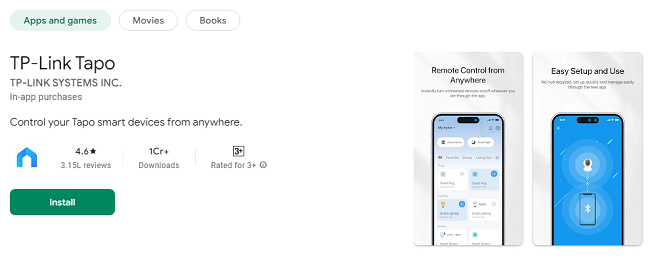
After selecting the Tapo app from the search results, you’ll be taken to the app’s page where you can view more details.
Click on the “Install” button to begin the installation process.
Wait a few moments for the app to download and install onto your Android TV. The installation time will depend on the speed of your internet connection.
Once the installation is complete, you’ll see the Tapo app icon in your apps list, and you can access it directly from the home screen of your TV.
Step 5: Launch the Tapo App on Your Android TV
Now that the Tapo app is installed, you can launch it directly from your Android TV’s home screen or apps section.
Open the Tapo app by selecting it from the apps menu.
The app will ask you to sign in with your TP-Link account. If you don’t have a TP-Link account, you can create one directly from the app.
To create an account, simply follow the on-screen prompts and provide your email address and a secure password. If you already have a TP-Link account, just enter your login details.
Step 6: Connect Your Tapo Devices
After logging in, the app will display a list of your existing Tapo devices (if any). If this is your first time using the app, you can start adding new devices by following these steps:
Tap the “+” button to add a new device.
Select the type of device you want to add (e.g., Tapo camera, smart plug, smart light).
Follow the on-screen instructions to put the device into pairing mode and connect it to your Wi-Fi network. Ensure your Android TV is connected to the same Wi-Fi network as the Tapo device for successful pairing.
Once paired, the Tapo app will display the device in your app’s home screen, and you’ll be able to control it directly from your Android TV.
Step 7: Control and Monitor Your Devices
After connecting your Tapo devices, you can begin managing and controlling them from your Android TV. The Tapo app’s user interface on Android TV is designed to be simple and easy to navigate using the TV remote.
Here’s what you can do with the Tapo app on your Android TV:
View Live Camera Feeds: You can view live footage from your Tapo security cameras in high resolution on your TV screen.
Control Devices: Turn smart plugs or lights on and off, adjust brightness, and more.
Set Schedules: Create schedules to automatically turn devices on or off at specific times.
Automate Routines: Set up automations to trigger devices based on certain conditions, such as turning lights on when motion is detected by a camera.
Manage Multiple Devices: Easily manage multiple Tapo devices from the app’s dashboard, which is displayed clearly on your TV screen.
Step 8: Use Voice Control (Optional)
If your Android TV is integrated with Google Assistant, you can control your Tapo devices using voice commands. Make sure to link your TP-Link account with Google Assistant through the Google Home app.
Once connected, you can say commands like:
“Hey Google, show me the front door camera”
“Turn off the living room light”
“Turn on the bedroom fan”
Voice control adds an extra layer of convenience, allowing you to control your smart home devices hands-free.
Troubleshooting Common Issues
While installing and using the Tapo app on Android TV is generally straightforward, you might encounter some issues along the way. Here are a few common problems and their solutions:
1. Tapo App Not Showing Up in the Google Play Store
If you cannot find the Tapo app in the Google Play Store on your Android TV, it may be due to compatibility issues. The app might not be available in some regions or may not be supported on certain versions of Android TV.
Solution: Make sure your Android TV is running a version of Android that supports the app. If the app is not available in your region, you might need to sideload the APK (advanced method).
2. Trouble Pairing Devices
If you're having trouble connecting your Tapo devices to the app on your Android TV:
Solution: Double-check that both your Android TV and the Tapo device are connected to the same Wi-Fi network. Also, ensure your Tapo device is in pairing mode (indicated by a blinking LED).
3. Slow App Performance
If the app is running slowly or lagging:
Solution: Close other apps running in the background to free up system resources. If the issue persists, try restarting your Android TV or reinstalling the Tapo app.
Conclusion
Downloading and using the TP-Link Tapo app on your Android TV is a great way to control and monitor your smart home devices from a larger screen. While TP-Link does not provide a native Tapo app specifically designed for Android TV, using the Google Play Store to install the app via emulators or sideloading offers an effective workaround.
With the Tapo app on Android TV, you can easily monitor live feeds from your security cameras, control lights, plugs, and other devices, set schedules, and even automate routines, all from the comfort of your couch. Plus, voice control via Google Assistant makes hands-free operation a breeze.
By following the simple steps outlined in this guide, you can take full advantage of your smart home and enjoy the convenience of managing all your Tapo devices from your TV. If you encounter any issues, troubleshooting is simple, and you can always reach out to TP-Link support for assistance.
Enjoy a smarter, more convenient home experience with the TP-Link Tapo app on your Android TV!
Updates